Time needed: 1 minute
- Click + Device button
Please note that: Only Organization Admin, Building/Complex/Area Manager, and Metering Point Editor that is allowed to add a Device, and when the user permission access type is Admin or Creator.
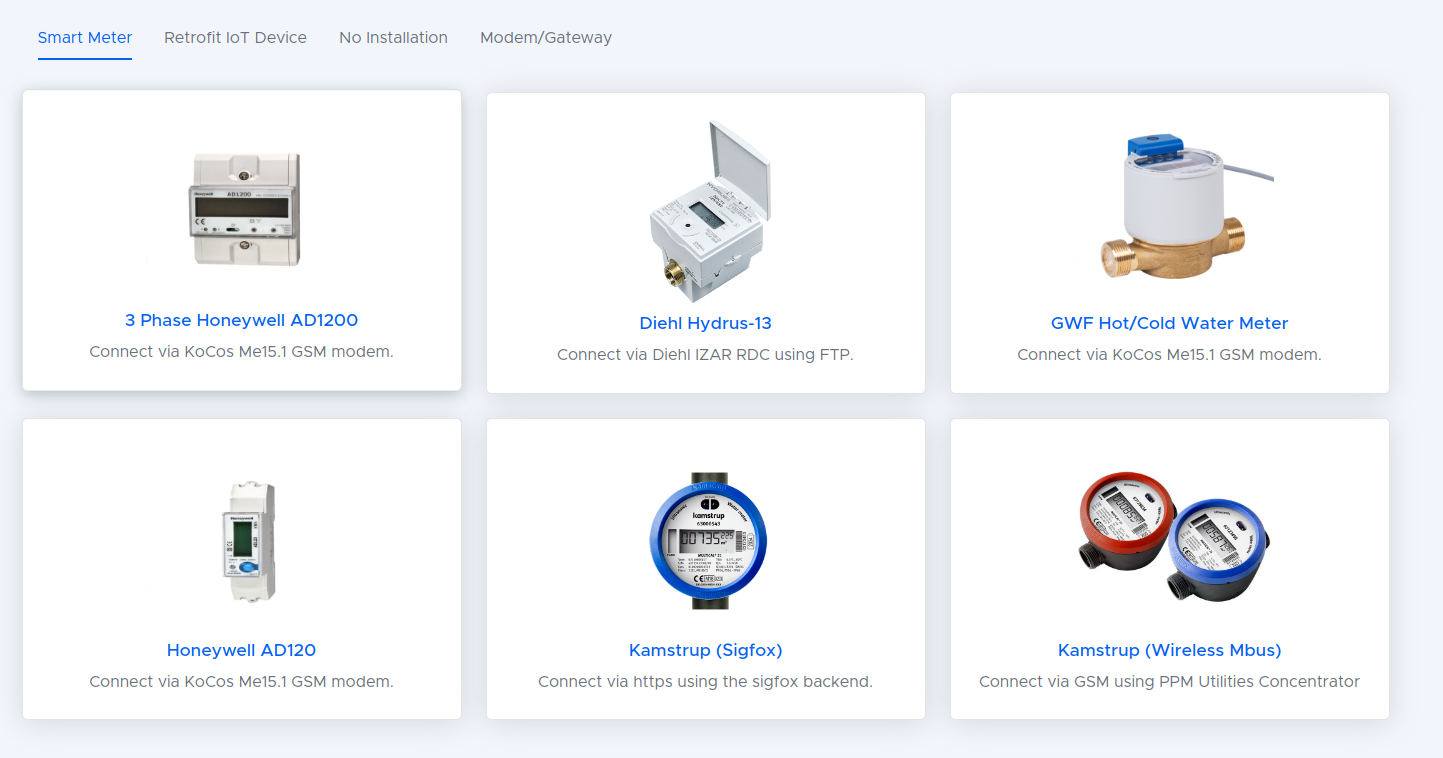
- Next Select Your Meter Type
• You will land to the Smart Meter supported meters list.
• Select the meter that you want to add to the platform.
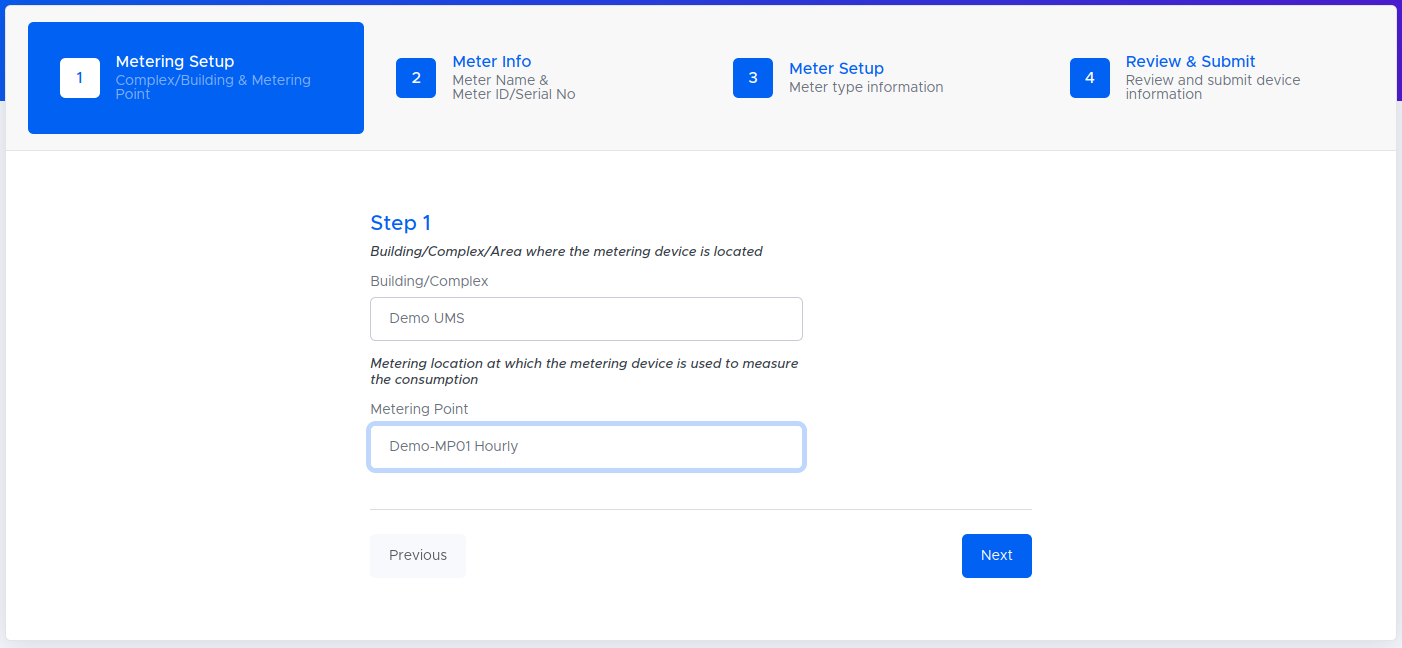
- Next link your device to a metering hierarchy
Select the Metering Section & Service Point to assign the meter then click “NEXT”.
(refer to metering hierarchy fields for more details on Metering Farm, Metering Section & Service Point).
(This is where your devices will be assigned to)
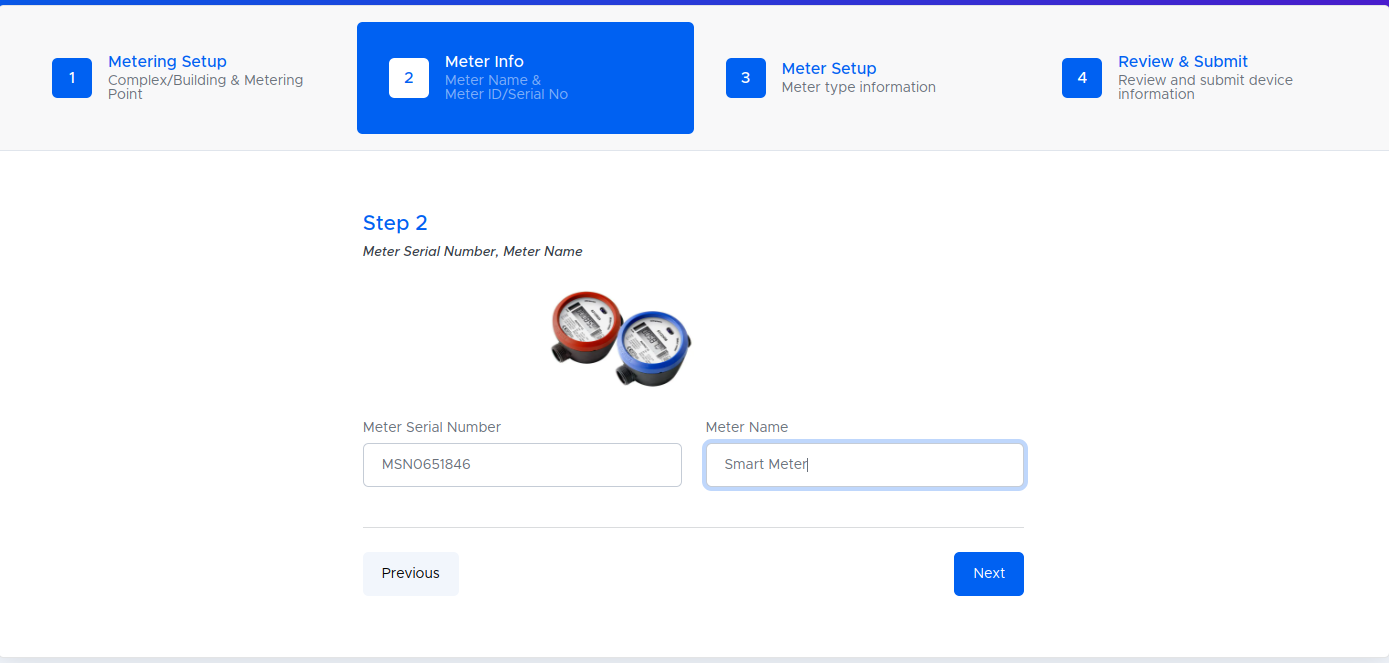
• NB: All the fields are required. - Enter the meter info fields
Complete the device fields. - Finally enter the meter Setup
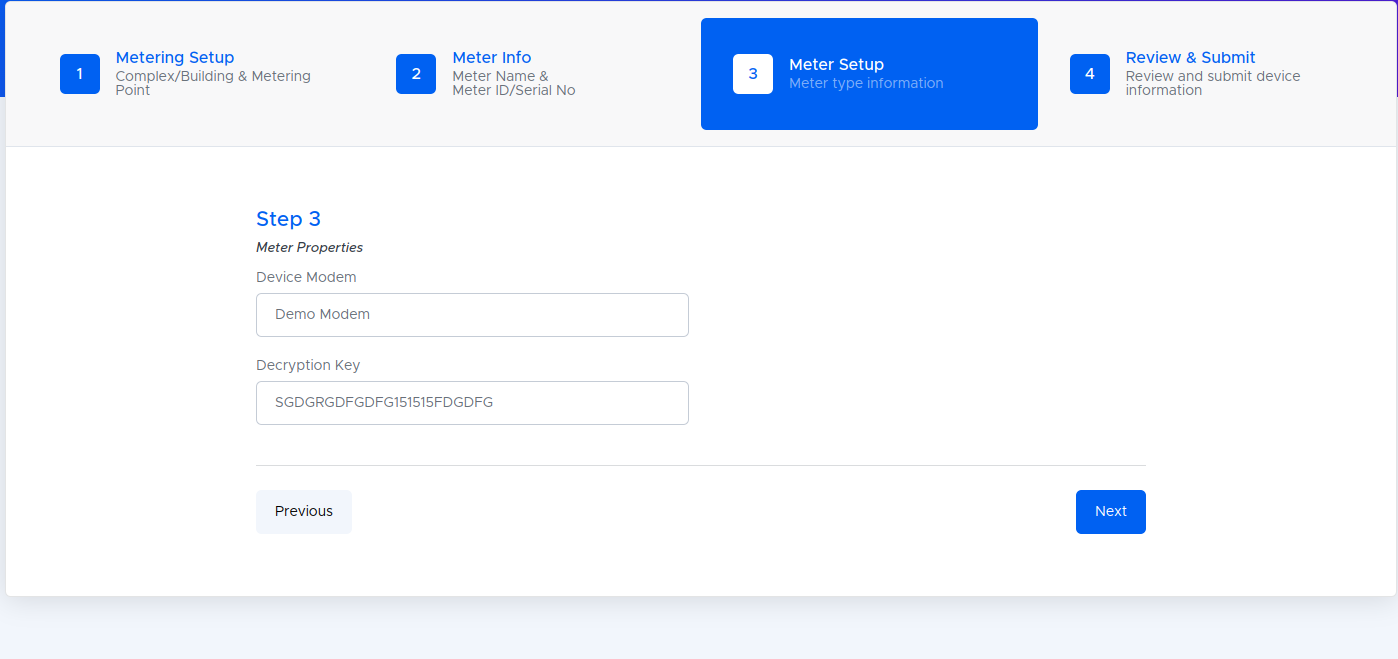
• You will land to Device Type form Meter Setup tab
• Complete the Meter Setup tab fields and then click Next button.
• NB: All the fields are required, and the Decryption Key field is only for Kamstrup Meters. - Review your details & submit
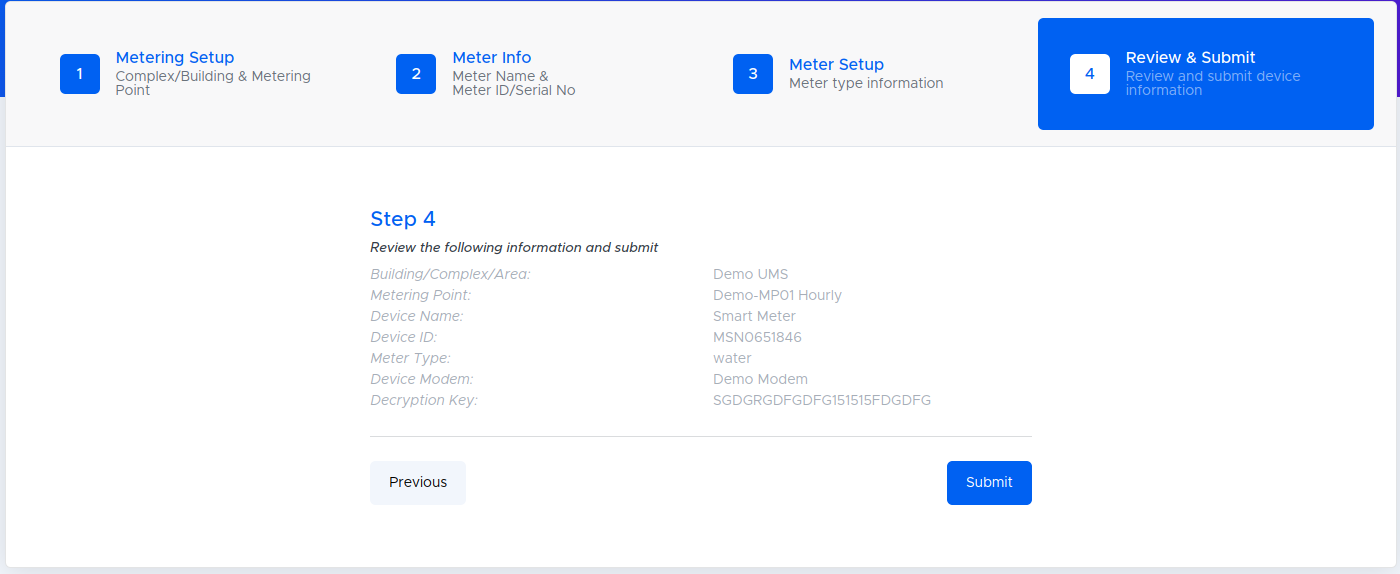
Review the information and then click Submit button